Church Finance & Contribution Management Workbook
An Excel workbook to record your church's income, tithes and offerings, expenses, pledges and funds, with budgets, bank reconciliation, receipts and ready-to-print reports.
Price
Kshs. 999
Cart coming soon. Online ordering is not open yet.
What it is
The problem it solves
Who it is for
- Church treasurers and finance committee members
- Church administrators and secretaries
- Pastors who report on church finances to the council or board
- Building and project committees that track pledges and funds
- Small and medium churches of any denomination, with no accounting or Excel expertise needed
Key benefits
- See where you stand on one page, for any month, quarter or year
- Keep every shilling in the right fund, with warnings when a restricted fund is spent on the wrong thing
- Know what each cash, bank and M-Pesa account holds, and compare it with your statements
- Follow each pledge from promise to payment, with overdue pledges shown in red
- Stay on budget with a yearly budget and a warning level you choose
- Build accountability: two people count each collection, and payments record who approved them
- Spot problems early: 19 automatic checks tell you in plain words what to fix
- Print official receipts and payment vouchers, with the amount in words
- Make it your own: add accounts, funds, ministries, income types and expense categories without any accounting codes
Key features
- Home menu that opens every sheet, with 16 sheets in all and tab colours for daily, monthly and report work
- Income Register with automatic receipt numbers and duplicate warnings
- Tithes and Offerings with cash, mobile money and bank amounts, counted-by and checked-by, and the deposit difference
- Expenses Register with voucher numbers, approver, receipt number and restricted-fund checks
- Pledge Tracker with amount received, amount still owed and status
- Budget Planner for income and expense categories, by department or fund if you wish
- Cash, Bank and Mobile Money balances, with transfers between your own accounts
- Bank Reconciliation for each account
- Church Funds and Projects, restricted and unrestricted, with approved transfers
- Receipts and Payment Vouchers ready to print or save as PDF
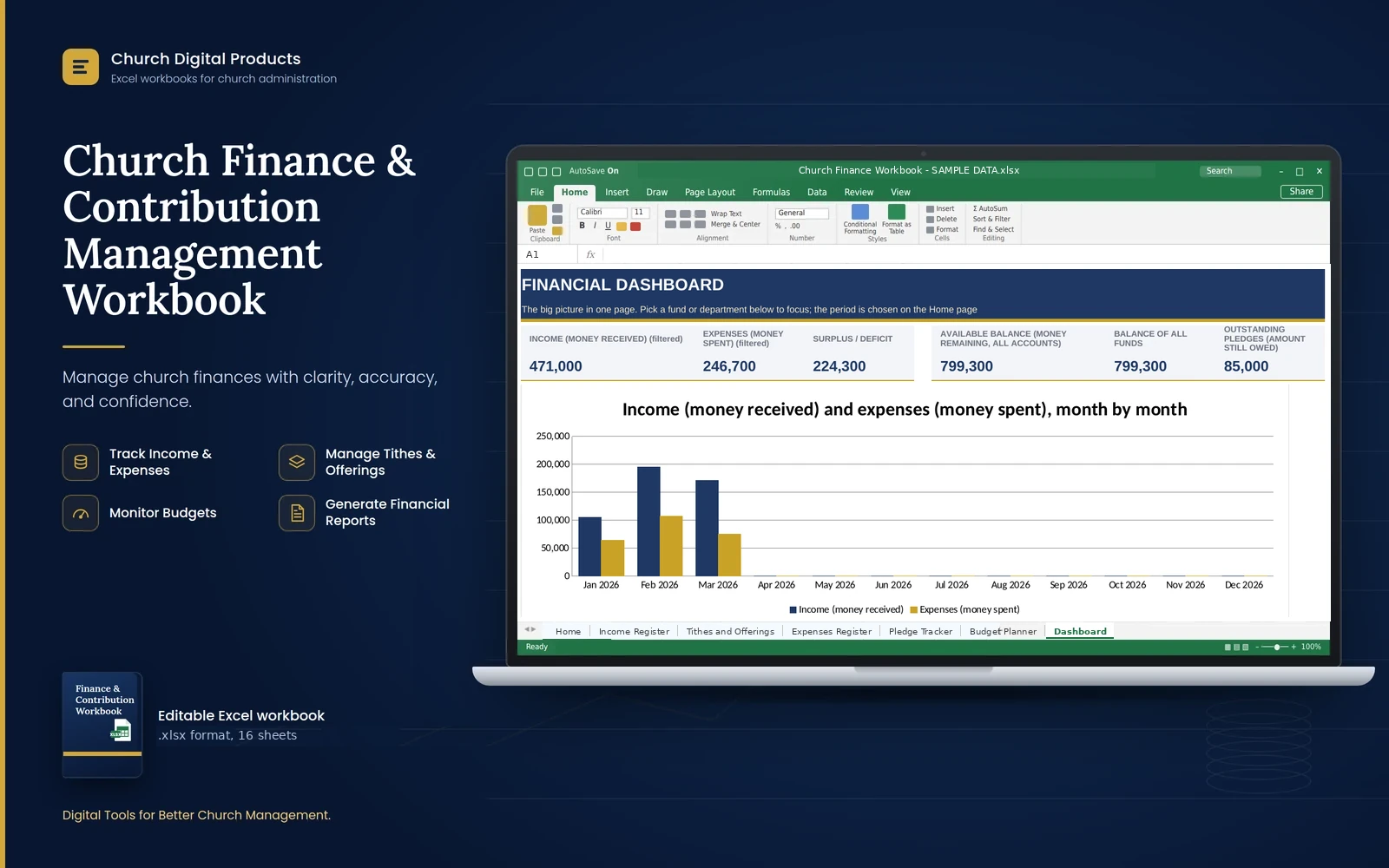
- Dashboard with charts and filters by fund and department
- One-page Financial Reports for the month, quarter, year or dates you choose
- Audit and Control sheet with 19 checks
- Accounting records kept behind the scenes on hidden sheets for your accountant
Good to know
- It works best in Microsoft Excel on a computer (a recent version is recommended) and also opens in LibreOffice Calc. Phones can open it, but typing records there is awkward.
- You type the entries yourself. It does not connect to M-Pesa or to your bank.
- It is a management tool, not accounting, tax or legal advice. It assumes no tax rate or statutory requirement. For audits and tax, consult a qualified accountant.
- Sheets are protected against accidental changes, but the protection has no password. For confidentiality, use Excel's password-to-open option.
- Excel does not record who changed what. The checks look at your figures, not at who typed them.
- Recording the giver's name is optional; separate contributor records are kept on a hidden sheet.
- Capacity: 1,000 income rows, 1,000 expense rows, 300 collections, 200 pledges and 100 budget lines. After that, start a new file.
- Each file covers one financial year; the manual explains closing a year and starting the next.
- After you download it, open the file and click Enable Editing.
Frequently asked questions
Do I need to be an accountant?
No. You type each record once into a register and the workbook adds it up. The manual explains every step in plain language.
Can I add my own accounts, funds and categories?
Yes. Type the name in the next empty row on Church Settings and it appears in the lists and reports. You never type accounting codes. There is room for 8 more accounts, 8 more funds, 8 more income types and 6 more expense categories.
Does it handle M-Pesa?
M-Pesa is a payment method and an account, with its own balance you can reconcile against the M-Pesa statement. You type the transactions yourself; it does not connect to M-Pesa.
What is the SAMPLE DATA copy for?
It is a practice file with fictional figures for a made-up church, so you can see every sheet working before you start your own. Never use it for real records.
Can I print receipts and reports?
Yes. Type a receipt or voucher number and print it, or save it as a PDF. The Financial Reports sheet prints on one page.
What if I make a mistake?
Set the row's Status to Cancelled and enter a correct row. Cancelled rows stay on record but are not counted.
Can more than one person use it?
Share the file with your authorised officers, but let one person edit at a time, and keep a dated backup every month.
What do I do at the end of the year?
The manual has a step-by-step guide: save a copy, change the financial year, carry the closing balances forward as opening balances and clear the old records.